Troubleshooting Withings Devices: A Step-by-Step Guide
This guide is designed to help you quickly and effectively resolve any issues you might encounter with Withings devices. .
1. Identifying the user/device
The first step in any troubleshooting process is to identify the device or user that is having a problem. Collect the device's MAC ID from the user or retrieve it from your system if it was previously saved—a recommended practice for efficient troubleshooting.
See Find a device serial number for every way to obtain it: from the Withings App, from the label on the hardware, from the device screen, or through the API.
2. Understanding the User's Issue
To pinpoint the issue:
- Determine if there is an error message displayed on the device.
- Check if the data is appearing on your platform.
- If your program use the Withings Mobile App: confirm whether the user can see their data inside the app.
3. Common Issues
Some of the common issues you might encounter include:
- The device displaying an error message. Go to the Program Support page to find out what the error means.
- Measurements taken on the device not showing up in the API or on the partner platform.
4. Troubleshoot Data Sync Issues
If the issue is related to missing data:
- It could be a connectivity issue: the device is not sending data to Withings servers.
- It could be an implementation issue: the device is sending data to Withings servers but the data isn't flowing to the partner platform.
Hypothesis 1: Connectivity Issue
Using the Fleet Management Tool
-
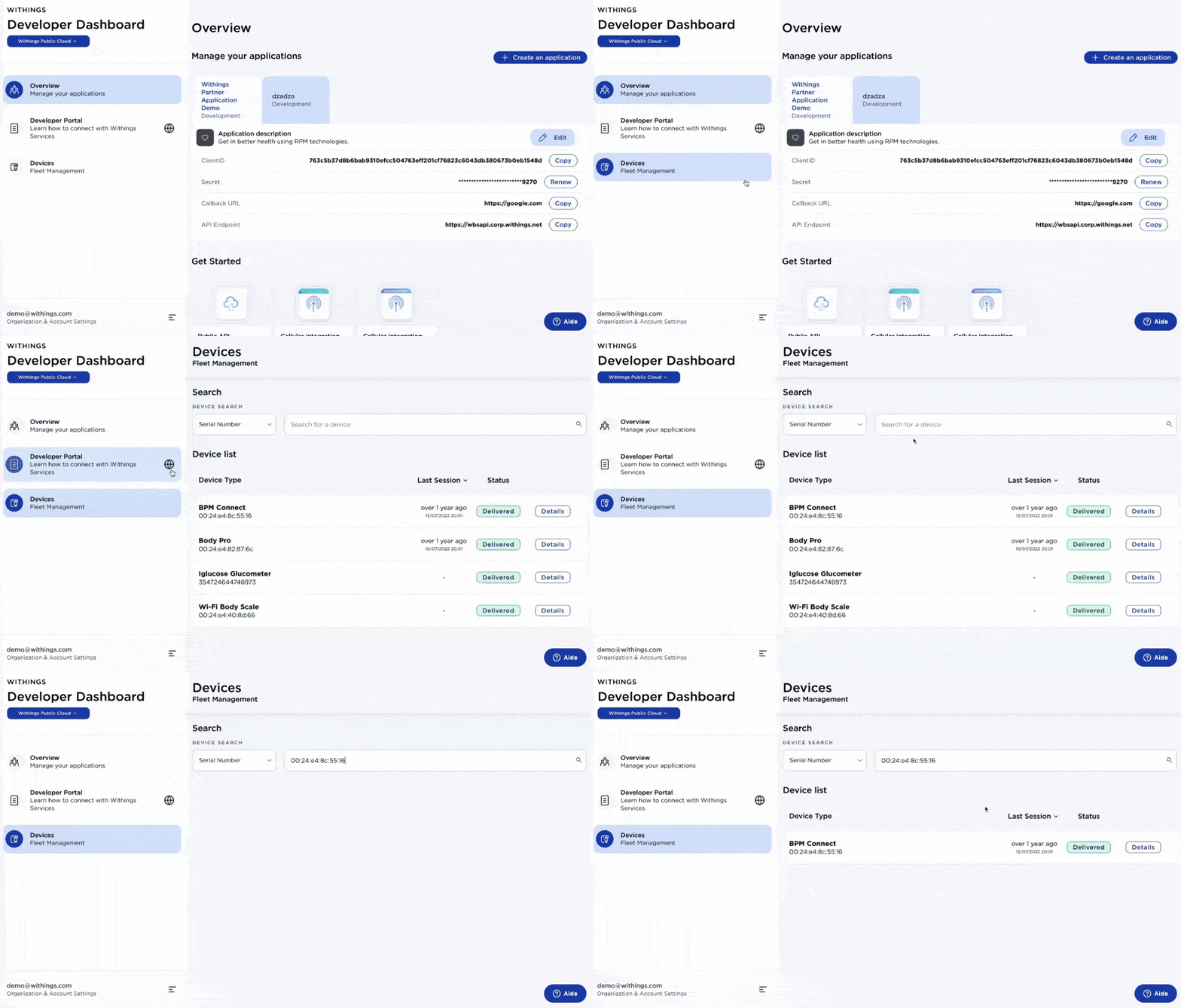
Access the Developer Dashboard and navigate to the "Fleet Management" tool.
-
Use the MAC address in the "serial number" field to locate your device.
-
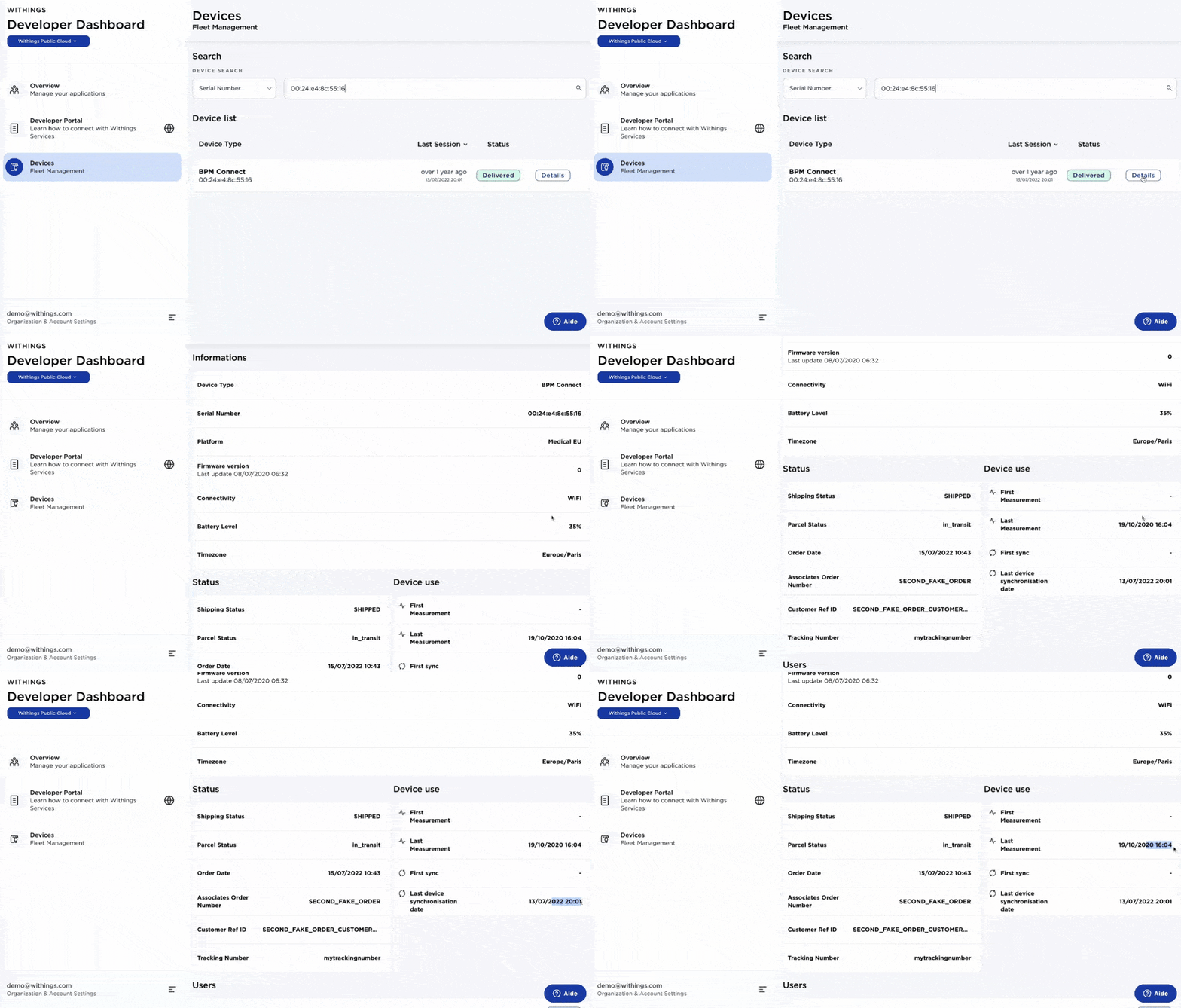
Check the last connection date to see if the device has connected since the last user measurement.
Using the API
Partners can also use the user-v2.getdevice webservice to retrieve a list of a user's devices. By examining the first_session_date and last_session_date fields, they can ascertain the last connection times. Incorporating this data into the partner's platform administrative UI can significantly streamline the debugging process.
Hypothesis 2: Implementation Issue
To investigate implementation issues:
- Within the "Fleet Management" tool, search for your device using the MAC address.
- If the device is connecting and being used but the data isn't showing on your platform, the problem likely lies within your implementation.
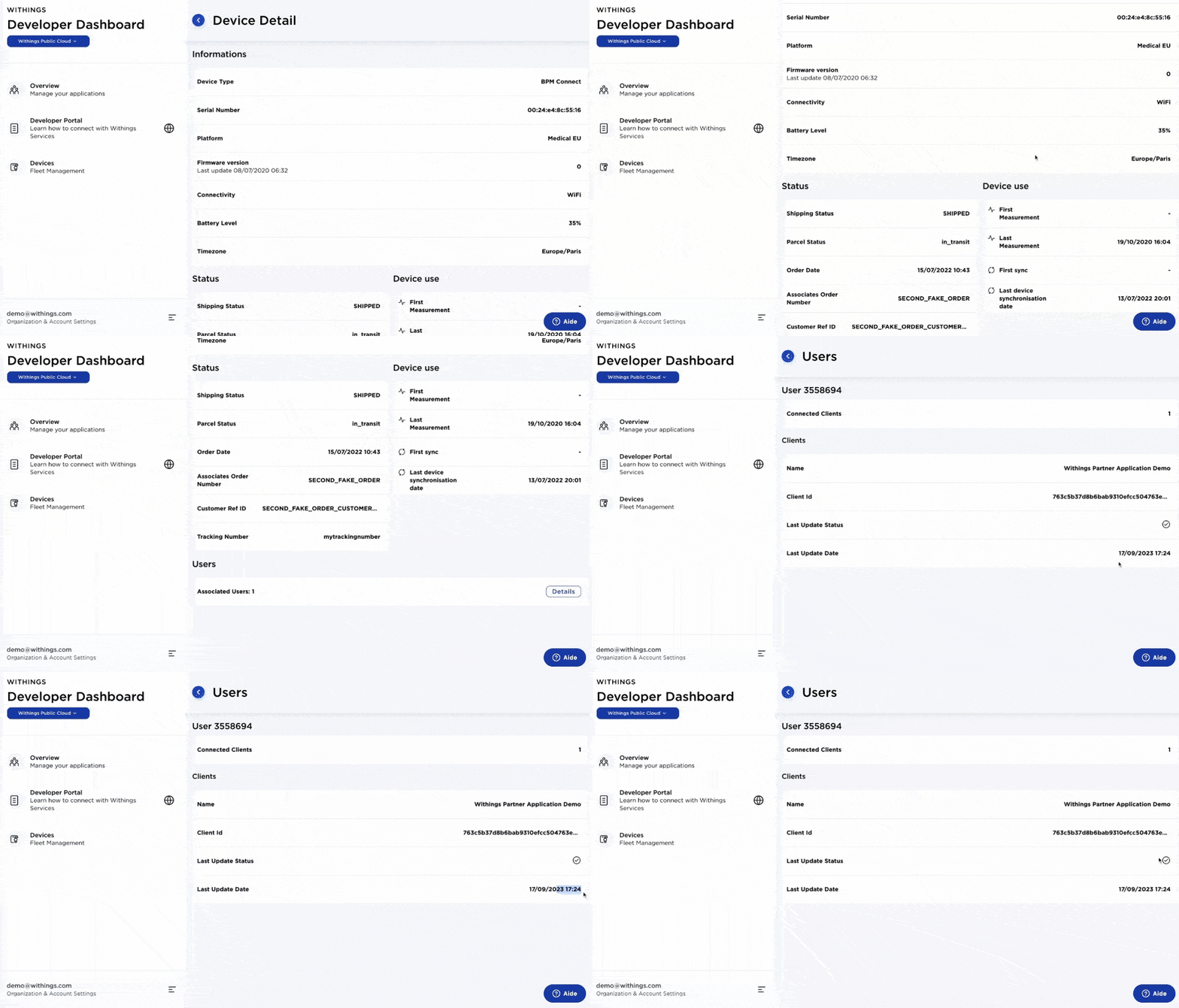
- Click on the "Connected Users" to view the status and timing of the last notification sent from Withings servers.
- Review your logs to ensure that:
- Notifications were received and parsed successfully.
- Data retrieval was attempted following the notification.
- There were no issues during token refreshment.
If after following these steps the issue persists, you can contact our Solution Engineers by clicking the "?" icon in the bottom-right corner of the Developer Dashboard.